.jpg)
Using the Noticeboard and Notifications
Notices and notifications are essential tools for keeping students and instructors updated on important information within your academy. Whether you’re announcing new courses, deadlines, or system updates, the Noticeboard and Notifications features make it easy to communicate directly with your users.
1. Understanding the Noticeboard and Notifications
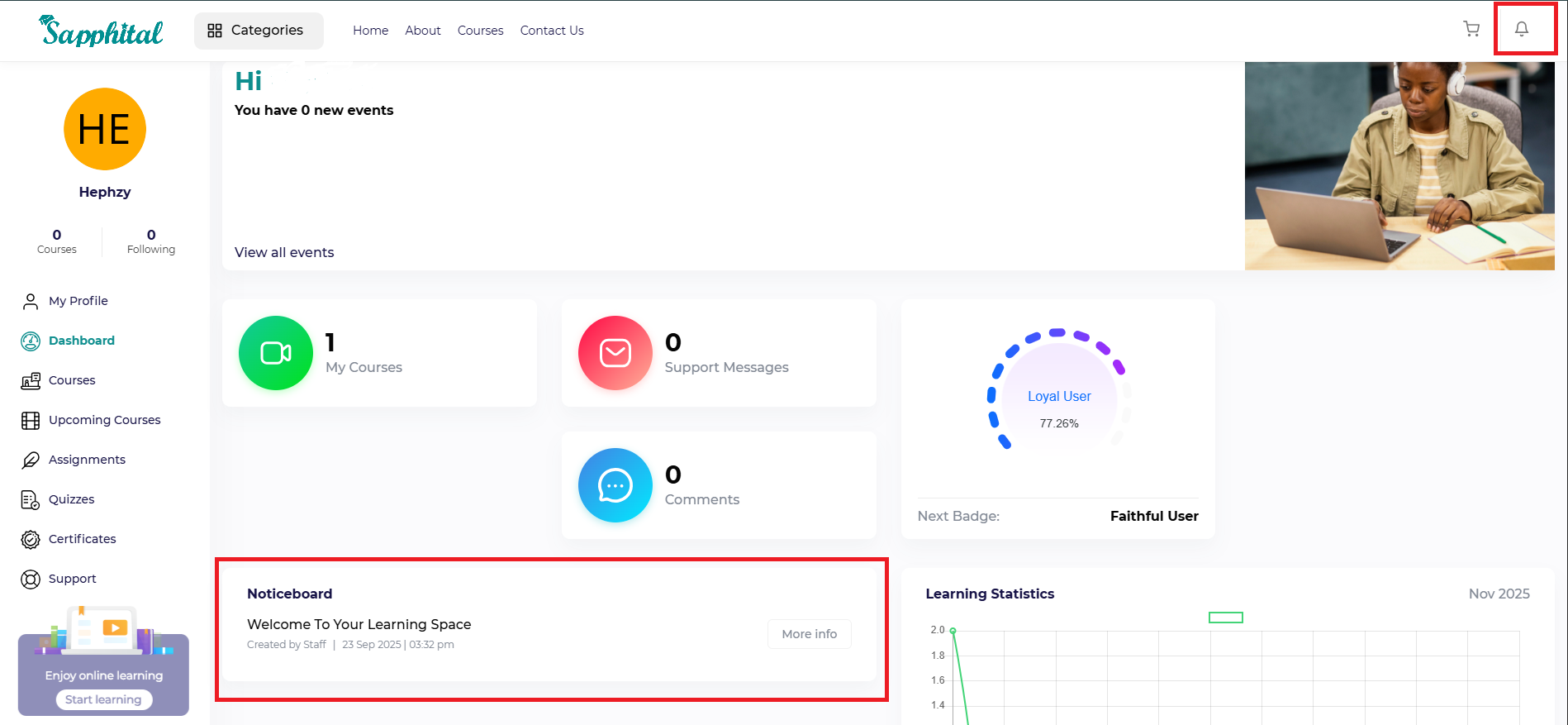
The Noticeboard section displays general updates and announcements that are visible to users when they log in.
This is where learners and instructors can quickly check for recent updates, messages, or reminders.
The Notification Bell (at the top-right corner of the dashboard) is used for sending direct notifications. These appear instantly for the selected users or groups ensuring time-sensitive alerts are seen immediately.
Together, both tools help administrators efficiently broadcast information across the platform.
2. Creating a Noticeboard Post
To create or manage notices as an admin:
Log in to your Admin Backend.
Scroll through the left-hand menu until you find Noticeboard.
Here, you can:
View the list of all existing notices on the system.
Filter notices by date or search by keyword to find specific posts.
To create a new notice, click New.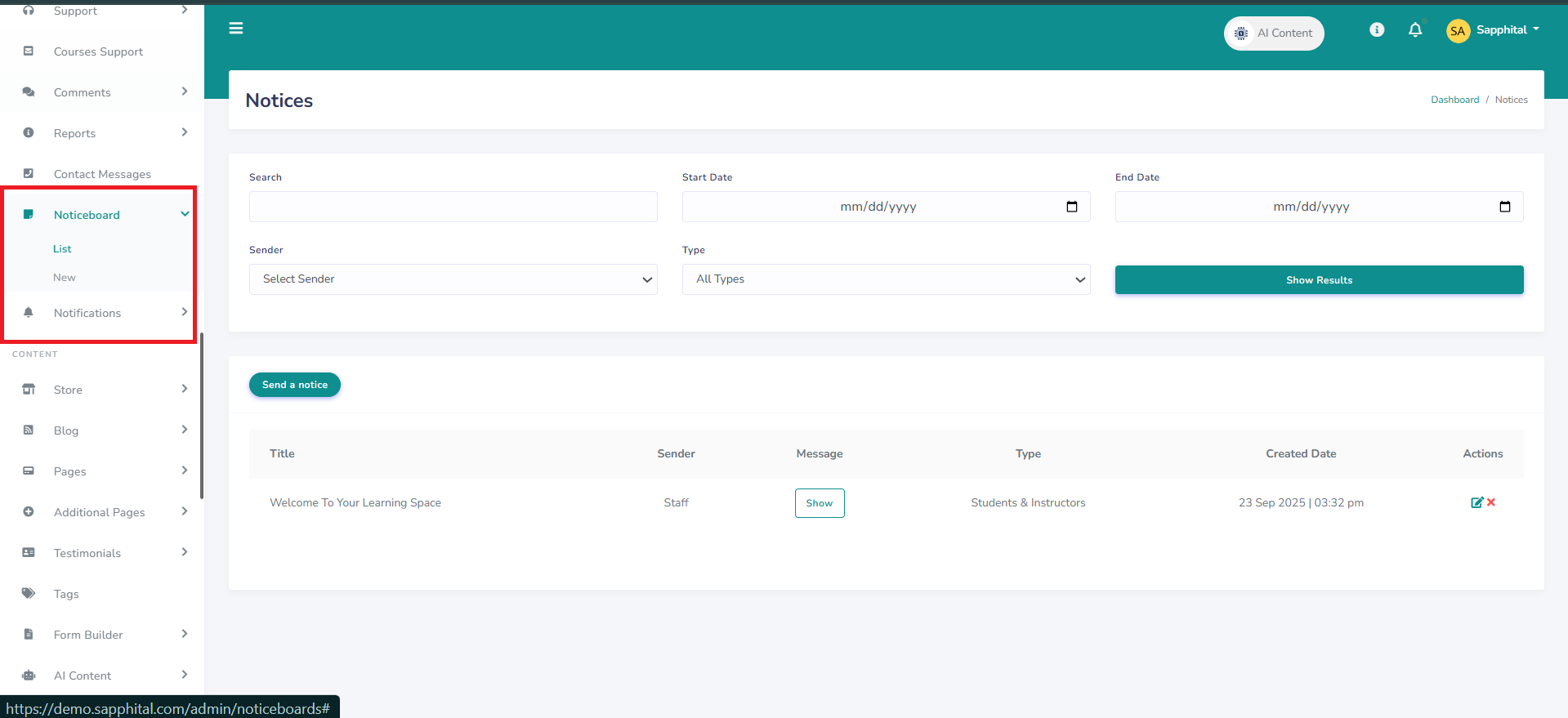
You’ll then be prompted to:
Enter the Title of the notice.
Select the Audience — choose whether it’s for Students, Instructors, or even specific Organizations.
Write the Message Body for your notice.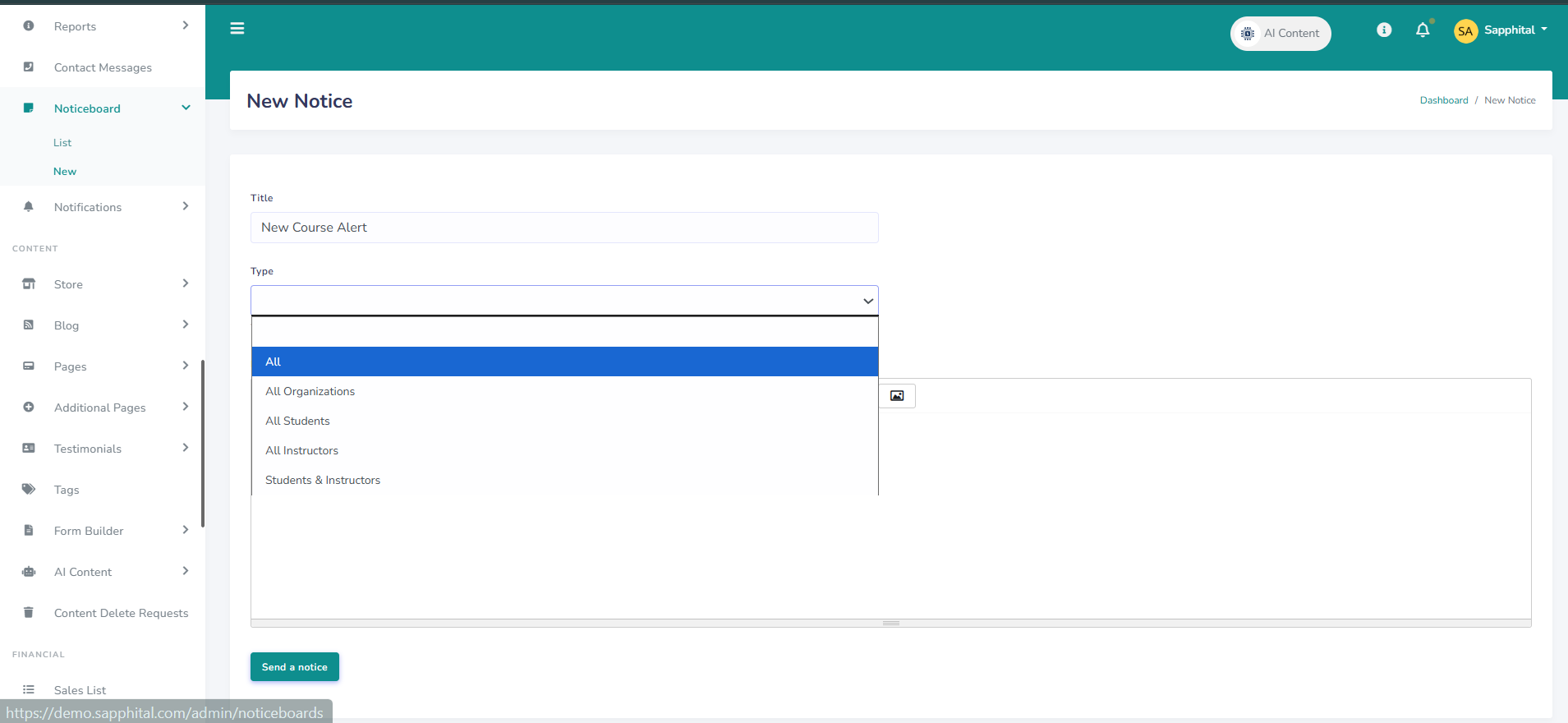 After saving, the notice will appear on users’ dashboards under the Noticeboard section.
3. Sending Notifications
To send notifications directly:
Log in to your Admin Backend.
Scroll down to Notifications.
You’ll see two main sections:
History – a list of all notifications that have been sent on the platform.
New – used to send a new notification.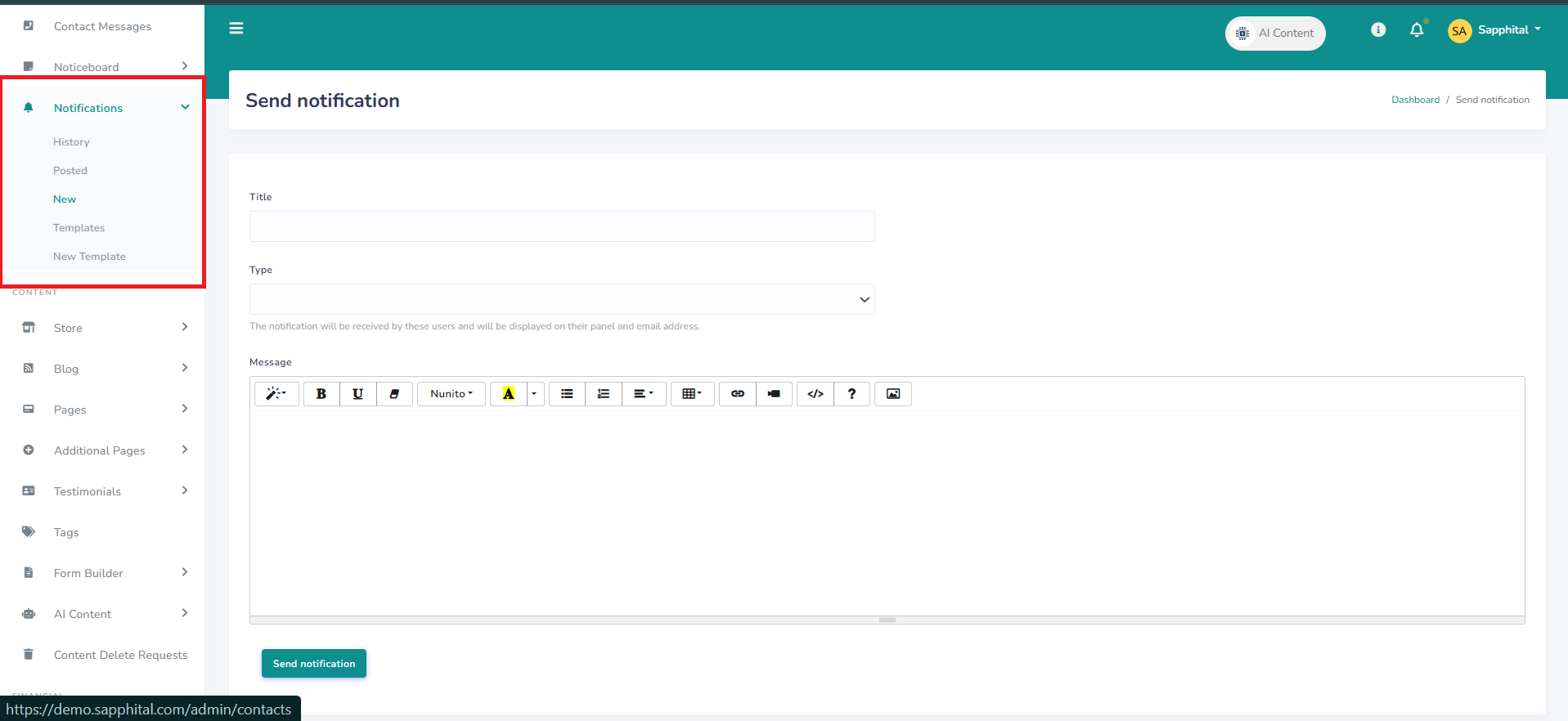
When creating a new notification:
You can select specific users or groups of users to receive it.
Enter the Subject and Message Body.
Use the Send Notice option to deliver it immediately.
4. Notification Templates
The LMS includes predefined notification templates for common system events — such as course completions, enrollments, and quiz submissions.
These templates can be customized to match your communication tone, or you can create your own.
Each template supports dynamic tags that automatically insert personalized information (like student names, course titles, or dates). This ensures every message feels tailored to the recipient.
5. Why Notices and Notifications Matter
Together, these features help maintain clear communication across your academy.
Use the Noticeboard for broad announcements and updates that appear to everyone, and the Notifications tool for quick, targeted messages that reach specific users or groups. This keeps learners and instructors informed, engaged, and connected to what’s happening across your LMS.
Comments (0)
Categories
Recent posts
.jpg)
Customizing Colors and Logo
5 Nov 2025
Using the Noticeboard and Notifications
6 Nov 2025
Enrolling Learners in the LMS
6 Nov 2025.jpg)